DancePro guide
How to Record Yourself While Watching a Dance Tutorial on iPhone
Watching a reference and filming a practice take can happen in the same place. DancePro plays a video from Photos while your front-camera preview stays beside it, then lets you review and edit the two synchronized recordings.
By Lei Gong · Lazy8 Studio · Published
Quick Answer
Import a dance video from Photos and open it in DancePro. Choose a short phrase, check speed and mirroring, then open the practice camera and allow camera and microphone access when asked. Frame your whole movement, record a take while the reference plays, and stop to review. Trim the result, choose the main view, then save to Photos or share. Recording, editing, and sharing are free; free exports carry a DancePro watermark.
One reference, one short take
Choose a phrase you can repeat in the same frame. Watch the reference and check that your highest reach and widest step remain visible in the camera preview before recording.
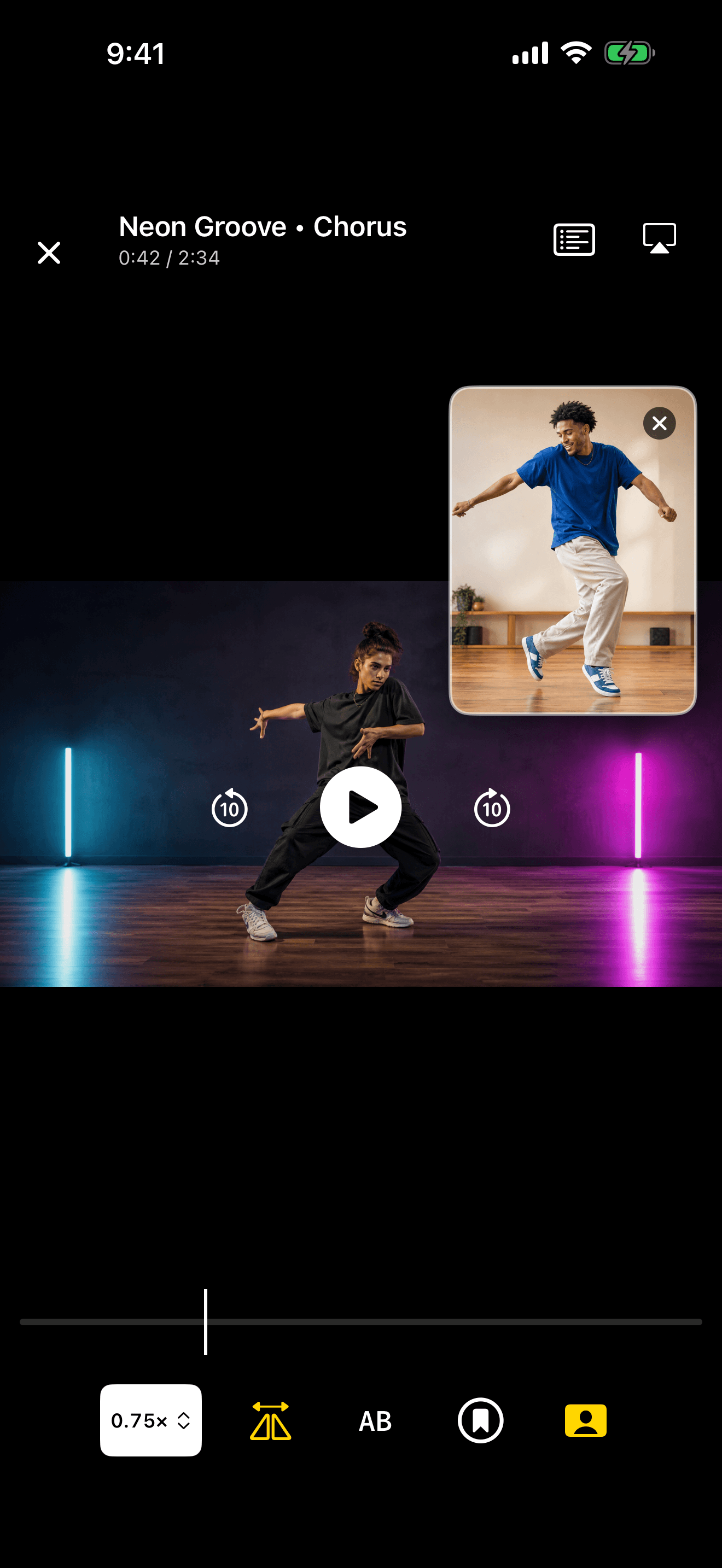
Try this with a video saved in Photos. DancePro combines mirroring, loops, speed controls, and recording on iPhone and iPad.
DownloadSee DancePro features and free practice toolsPrepare a reference you can practice
- 1. Save an appropriate video: Use a clip you have permission to practice with and import it from Photos. DancePro does not need to download the tutorial from a social-media link.
- 2. Choose one phrase: Begin with one eight-count or another short section. Include a little preparation and the landing after the phrase so you can see both in your review.
- 3. Check the orientation: Pause on a recognizable right-hand movement and check whether the reference is already mirrored. Flipping an already-mirrored video changes it back.
- 4. Set the speed: Choose a speed at which you can follow the movement. Return to normal speed for a later comparison; do not judge a slow practice take as if it were a finished performance.
Open the camera and frame your movement
Open the practice camera from the player. The first time, iOS may ask for camera and microphone access. Allow access if you want to record; if you previously declined, review DancePro’s permissions in Settings.
Put the iPhone or iPad on a stable support and keep the screen where you can see the reference. Move the camera preview if it covers a detail you need. Step into position and check the highest reach, widest step, and floor level before starting.
Keep enough room to move safely. The camera view can help you inspect framing, but it cannot correct technique or make an unsuitable practice space safe.
Record a short take with the tutorial
- 1. Check playback before recording: Replay the selected phrase once. Confirm the speed, loop boundaries, orientation, and audible music are what you want.
- 2. Start the recording: Use the camera recording control and follow the reference as it plays. DancePro keeps the tutorial and your camera recording synchronized.
- 3. Finish the movement: Allow the landing or final shape to finish, then stop recording and open the take for review.
- 4. Choose one correction: Compare a specific accent, facing, or weight transfer. Make that one change before another take instead of trying to fix the whole dance at once.
Review one eight-count before recording again
For example, choose a phrase with a step on 1, a turn on 5, and a landing on 8. Watch those three moments in both views. If your landing is late, inspect the transition into it rather than immediately rehearsing from the beginning.
Keep the next take at the same speed, camera angle, and orientation. That gives you a more useful comparison. Once the phrase feels clear, widen the loop and try it at normal speed.
Trim, choose a view, and export
In the recording editor, trim unwanted material before and after the take. Choose the tutorial or your recording as the main view, or create a recording-only version when you want to review your movement on its own.
Preview the edited result, then save it to Photos or use the sharing menu. Check sound, framing, and the beginning and end of the exported video before sending it. Practicing with a clip does not automatically grant permission to republish its choreography, footage, or music.
What is free and when Pro matters
Camera practice, recording, editing, and sharing are free. The free library supports up to five routines and five bookmarks per routine. Free exports include a DancePro watermark.
Pro removes the export watermark and adds unlimited routines and bookmarks, Beat Sync adjustments, and advanced practice insights. Monthly and annual subscriptions are available; prices and any trial eligibility are shown in the app before purchase.
If recording does not work as expected
The camera is unavailable
Check DancePro’s camera and microphone permissions in Settings, then reopen the practice camera. A simulator cannot stand in for testing a real front camera.
The reference covers your movement
Adjust the camera preview position while practicing, then choose the main view in the editor for the result you want to review.
The take looks reversed
Check the source video’s orientation separately from the camera preview. Use a known right-hand movement and keep the same settings between takes.
You cannot save the export
Check free device storage and any Photos permission requested by iOS. Preview the finished result after saving.
Watch the phrase. Record your next take.
Start with a video from Photos and one short practice phrase. Recording, editing, and sharing are free; Pro removes the export watermark.
DownloadFrequently Asked Questions
Can I record myself while a dance tutorial is playing on my iPhone?
Yes. DancePro can play a dance video imported from Photos while you record through the practice camera, then let you review the synchronized tutorial and recording.
Do I need DancePro Pro to record?
No. Recording, editing, and sharing are free. Pro removes the DancePro watermark from exports and adds other premium features.
Can I use a YouTube or TikTok link directly?
This workflow uses a video imported from Photos. Save an appropriate video using a method its owner and platform permit, then import that local video into DancePro.
Can I export just my own recording?
Yes. The recording editor can create a recording-only version, as well as a composition with the tutorial or your recording as the main view.
Does the app tell me whether my technique is correct?
The camera and synchronized playback support your own visual review. They do not replace a teacher’s feedback or provide a guarantee about technique or safety.
Keep Learning
Explore DancePro, the dance practice video player for iPhone and iPad.
Sources and Further Reading
These references informed the guide. Dance training is individual; use qualified instruction for technique, injury concerns, and movements that are new or unsafe in your space.