Dots guide
How to Add a Life Calendar Widget to Your iPhone
Keep a life calendar, the shape of this year, or today’s minutes in view without opening another screen. Dots widgets let you choose a timeline for each place on your iPhone.
By Lei Gong · Lazy8 Studio · Published
Quick Answer
Open Dots once and finish your initial setup. Touch and hold the Home Screen, choose Edit → Add Widget, search for Dots, and add a size you like. Touch and hold the new widget, choose Edit Widget, and set Page to Life in weeks. Lock Screen widgets are added separately through Lock Screen customization.
Choose the view before the widget size
- Life in weeks
- A longer view. Start with a larger Home Screen widget when you want room for a grid.
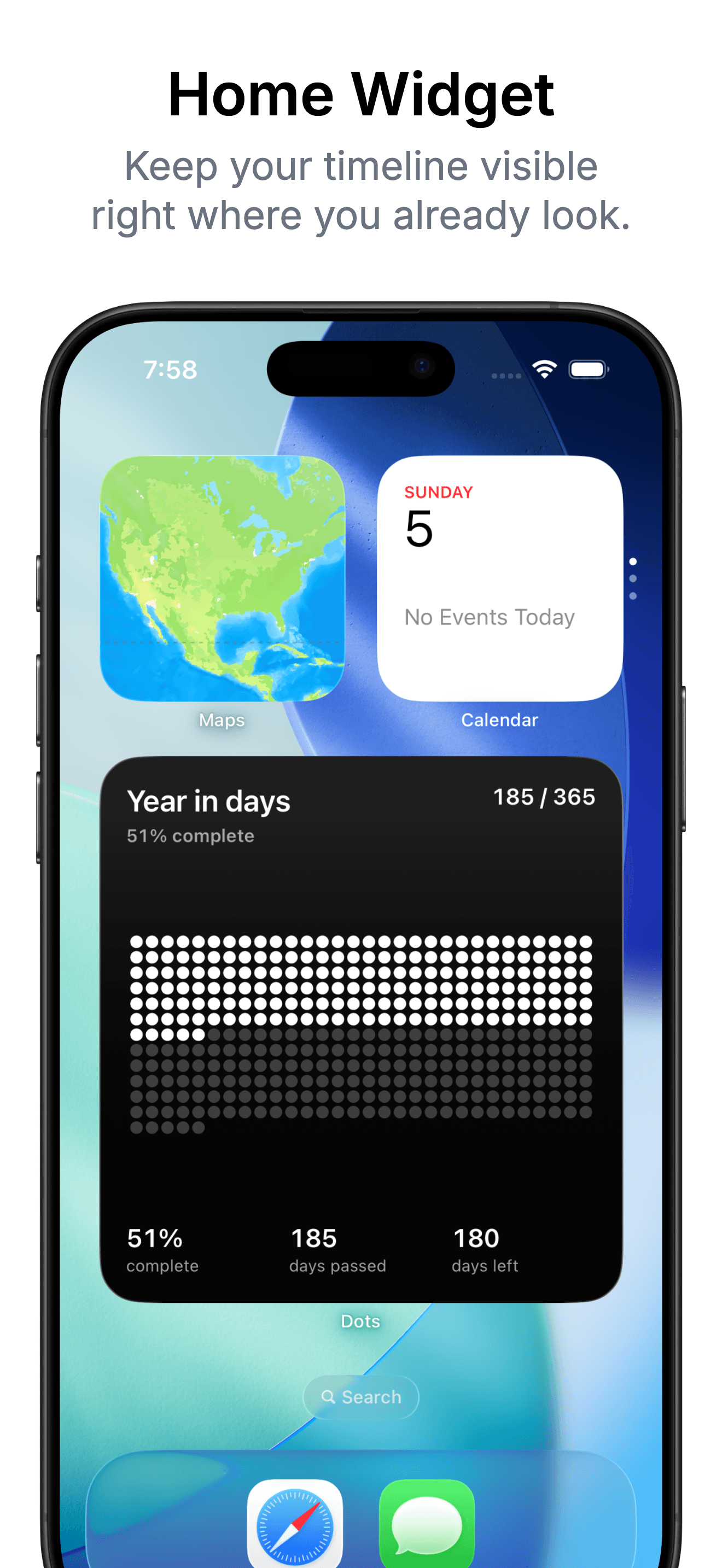
- Year in days
- A view of the current year. Useful for noticing the season without a task list or streak.
- Today in minutes
- A shorter horizon. A compact widget keeps the day in view.
- A custom timeline
- A saved project, trip, or personal season. Create it in Dots before choosing it in the widget.
New to the idea? Read what a life calendar shows before choosing your horizon.
Add Dots to your Home Screen
- Install and open Dots. Complete the initial setup so your calendar has the information it needs.
- Return to the Home Screen and touch and hold an empty area until the apps jiggle.
- Tap Edit, then Add Widget. Search for Dots.
- Swipe through the available sizes, tap Add Widget, and place it where you want it. Tap Done.
- Touch and hold the widget, choose Edit Widget, then tap Page and choose Life in weeks, Year in days, Today in minutes, or a saved custom timeline.
Add Dots to your Lock Screen
- Touch and hold your Lock Screen, authenticate if asked, and choose Customize → Lock Screen.
- Tap the widget area below the clock, find Dots, and choose a layout that fits the available space.
- While customizing, tap the placed Dots widget to choose its Page. Choose your life, year, day, or a saved custom timeline.
- Close the widget picker and tap Done. Check that the timeline shown is the one you intended.
Dots supports circular, inline, and rectangular Lock Screen widget families. Space is limited: a compact widget summarizes time; a larger Home Screen widget has more room for dots. The layouts iOS offers depend on the space and surface you are editing.
Widget or wallpaper?
A widget sits above the background and uses the iOS widget system. A wallpaper is the background image itself. Wallpaper designs can be previewed for free; applying them and updating them through Apple Shortcuts requires Dots Plus.
For a full-screen year grid, use the year-progress wallpaper guide. For the automation steps, use the complete wallpaper setup guide. You can use widgets without either setup.
If the widget is missing or shows the wrong page
- Dots is missing from the picker: open the app once after installing or updating, then reopen the widget picker. Check that your device meets the App Store requirements.
- The wrong timeline appears: edit that specific widget and check Page. Each widget has its own selection.
- A custom timeline is missing: confirm it is saved in Dots, then reopen the widget’s Page picker.
- The display seems behind: open Dots to check the current view. iOS schedules widget refreshes, so widgets are not second-by-second timers.
- The layout is too small: use a larger Home Screen size. A compact Lock Screen widget has less room than a full life-calendar grid.
Keep the timeline that matters close.
Download Dots for iPhone to explore Life in Weeks, Year in Days, and Today in Minutes. Custom timelines and additional personalization are available with Dots Plus.
DownloadFrequently Asked Questions
Can I see my life calendar without opening Dots?
Yes. Add a Dots widget to your Home Screen or Lock Screen and choose Life in weeks as its Page. Larger Home Screen widgets have more room for a dot grid; compact Lock Screen widgets present a smaller view of the same timeline.
Why does my Dots widget show today instead of my life calendar?
Each widget has its own Page setting. Edit the widget and change Page to Life in weeks. Changing pages inside the app does not choose the page for every widget.
Do widgets require the wallpaper shortcut?
No. Widgets use iOS widget updates. The wallpaper shortcut creates a separate image for the Lock Screen background; it is not needed to add or configure a widget.
Can I put a custom timeline in a widget?
Dots supports widgets for saved custom timelines. Create the timeline in the app, then look for its name in the widget’s Page setting. Custom timelines require Dots Plus; check the current purchase options in Dots.
Does a Today in minutes widget update every second?
No. iOS controls widget refresh timing, so a widget is a glanceable summary rather than a continuously running timer. Open Dots when you want to inspect the current view.