Dots guide
How to Set Up a Year Progress Wallpaper on iPhone
A year progress wallpaper turns the calendar into something you can see at a glance: one dot for each day, with the elapsed part of the year filled in. Here is how to choose, read, and automatically refresh that view on your iPhone with Dots.
By Lazy8 Studio · Published
Quick Answer
Open Year in Days in Dots and choose the wallpaper button. Select a layout and colors, then connect the wallpaper to Apple Shortcuts. A daily automation can create and apply a fresh image each morning. The grid represents the current calendar year; it does not measure tasks, habits, or how well you used the day.
What the Dots Mean
A regular year has 365 days and a leap year has 366. Year in Days gives each day a place in the grid. As time passes, the filled portion grows. The result is a calendar view you can read without opening a planning app.
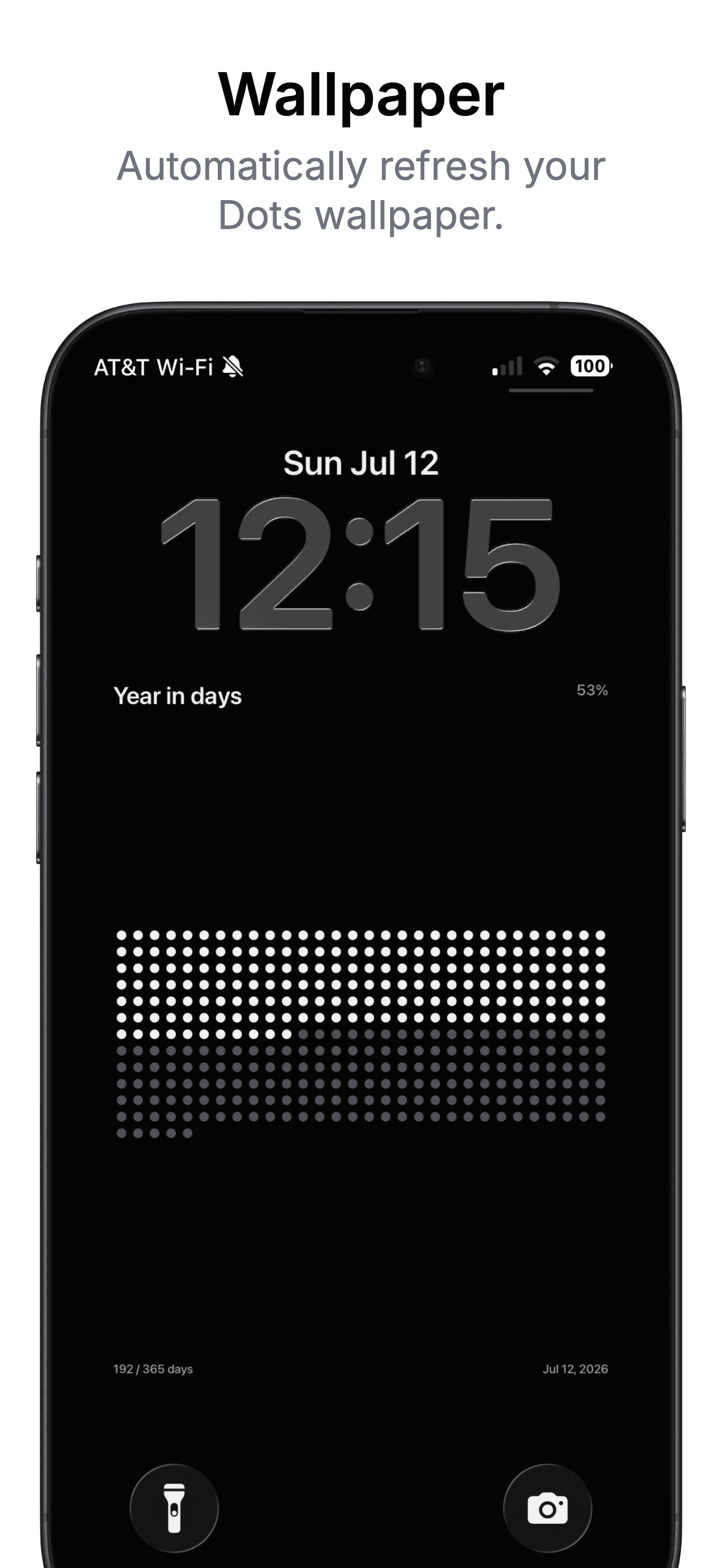
In the Dots screenshot above, the wallpaper shows 192 of 365 days elapsed and rounds the year progress to 53%. That is the example date in the image, not today’s live percentage. Your wallpaper uses the current timeline when the shortcut runs.
A wallpaper is a rendered image. It stays at its last rendered state until another update runs. Daily automation is what keeps a year-progress wallpaper current.
Choose a Wallpaper You Can Read
- Open Dots and swipe to Year in Days.
- Tap the wallpaper button in the page header.
- Choose Minimal for a simple grid, or Detailed for the title, percentage, elapsed units, and date.
- Choose a palette that contrasts with your Lock Screen clock and widgets.
- Check the preview before applying it, especially where the clock overlaps the image.
Make It Refresh Every Day
The shortcut needs these actions in order: Create Dots Wallpaper, Set Wallpaper Photo, and Record Dots Wallpaper Update. Select a photo-based Lock Screen in the middle action and disable Show Preview and Crop to Subject.
Test the shortcut once, then create a daily Time of Day automation with Run Immediately. Choose a time before your usual first glance at the phone. For every setting and the trial flow, follow the complete auto-updating wallpaper setup guide.
If the Wallpaper Still Shows Yesterday
- Run the shortcut manually. If that works, check the daily automation’s time, enabled state, and Run Immediately setting.
- Check which photo-based Lock Screen is selected in Set Wallpaper Photo; it may be updating a different wallpaper.
- Return to Dots and check the last successful update. Make sure Record Dots Wallpaper Update is the final action.
- If a trial has ended, check the wallpaper purchase options shown in Dots.
Year Progress, Life in Weeks, or a Custom Timeline?
Use the year view when you want a sense of the current season. A life calendar offers a longer horizon. A custom timeline can hold a project, trip, or school term. Choose the time scale that helps you make a useful next choice.
Keep this year in view.
Download Dots for iPhone to see your year in days, your life in weeks, and your own timelines through widgets and wallpapers.
DownloadFrequently Asked Questions
What is a year progress wallpaper?
It is a wallpaper that represents the current year as a grid of days. Filled dots show elapsed days, while open dots show the remaining part of the year.
Does a 365-dot wallpaper work in a leap year?
A calendar-year view needs 366 days in a leap year. Use Dots’ Year in Days view rather than reusing an old fixed 365-dot picture.
Can the wallpaper refresh automatically?
Yes. Connect Dots to Apple Shortcuts and schedule a daily Time of Day automation to render and apply the current wallpaper. Dots does not need to stay open after setup.
Is the wallpaper feature free?
Your first wallpaper update starts a three-day trial. After the trial, automatic wallpaper updates require a one-time purchase. The app shows current purchase options.